 Import Data Templates
Imports
Import vendors into Business Central from Excel or CSV
Supplier lists and exports, turned into vendor cards with their bank accounts.
Vendor data also arrives as files: the suppliers of a newly acquired company, a list prepared by purchasing for a new category, an export from a procurement or onboarding tool, a clean-up of addresses and bank details, and more. Creating them by hand means the vendor card and then the bank account page, one vendor at a time.
With Import Data Templates, one row of the file creates or updates the vendor together with its bank account. Matched by the vendor number, the same file can be imported again to update what changed.
What the file can look like
One row per vendor, with the columns the source provides: number, name, address, contact data, and the bank account next to them, code, bank name, IBAN and SWIFT. A row whose bank columns are empty creates the vendor alone. Values the file does not carry, such as posting groups or payment terms, are set as default values in the template or asked when the import starts. With write mode Insert or Update, rows for existing vendors update them instead of failing.
The sample below is the shipped example: three vendors, two of them with a bank account.
Sample file: EX-VENDORS.csv
- Sample file: EX-VENDORS.csv
How the import works
-
Load the template
Create
EX-VENDORSfrom the Template Examples page, or describe your own file in a template: fill it in from the structure of the file, use Read Structure from File, or let Copilot propose it from a sample and review it before keeping it. Related records, the vendor bank account in the example, are added to the template with Add Related Record.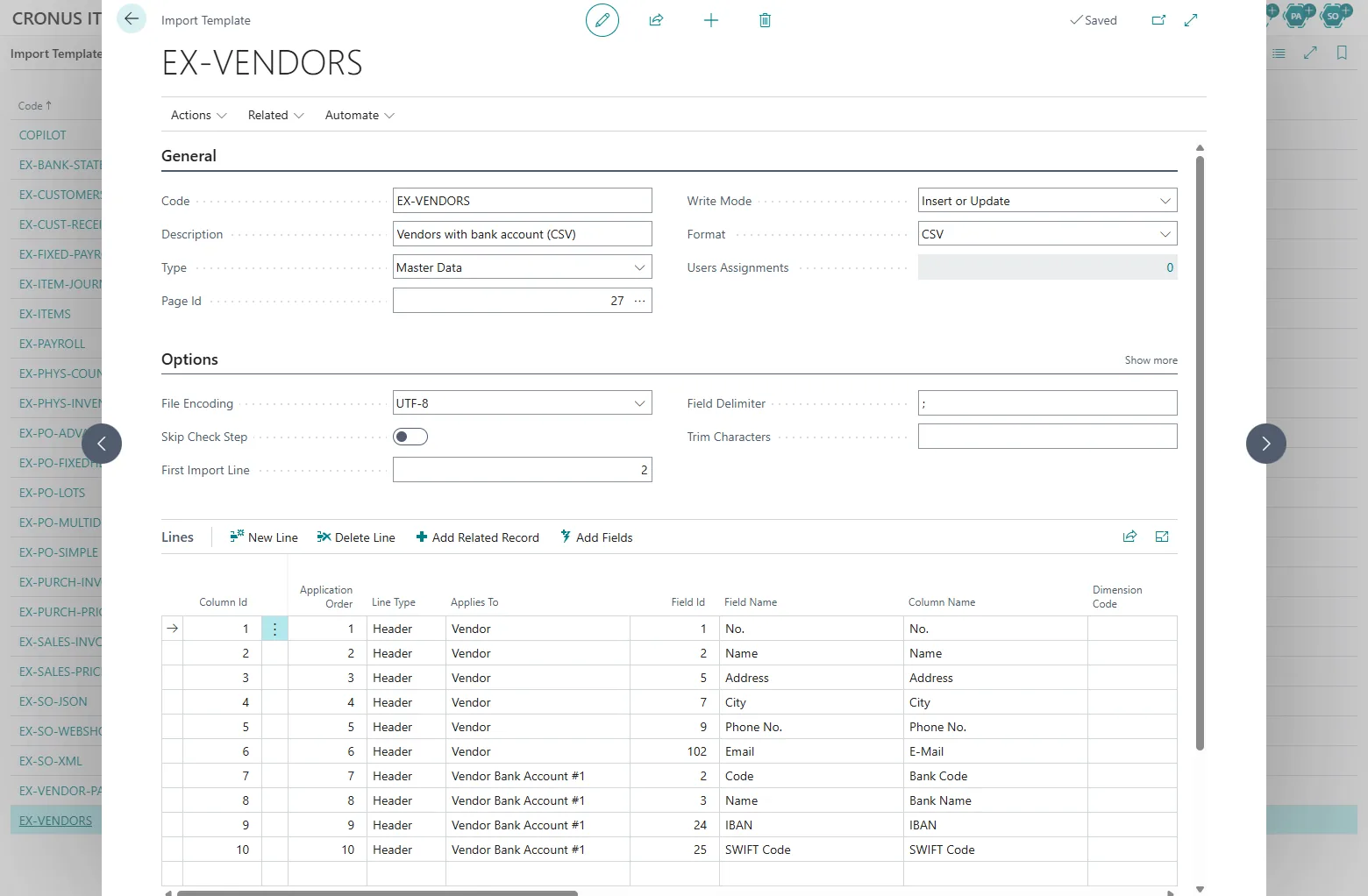
The EX-VENDORS template: the vendor and its bank account on the same row. -
Start the import from the Vendors list
Choose Import Template on the Vendors list, pick the template and the file, and answer the import parameters if the template asks any. The check step validates every value and the write mode rules, and reports each problem with the line of the file.
The flow on the Vendors list: Import Template, the template, the file, the result. -
The vendors are ready
The vendors exist with their bank accounts, ready for purchase documents and payments. The import history records the file and the result; importing the same file again later updates the vendors it matches.
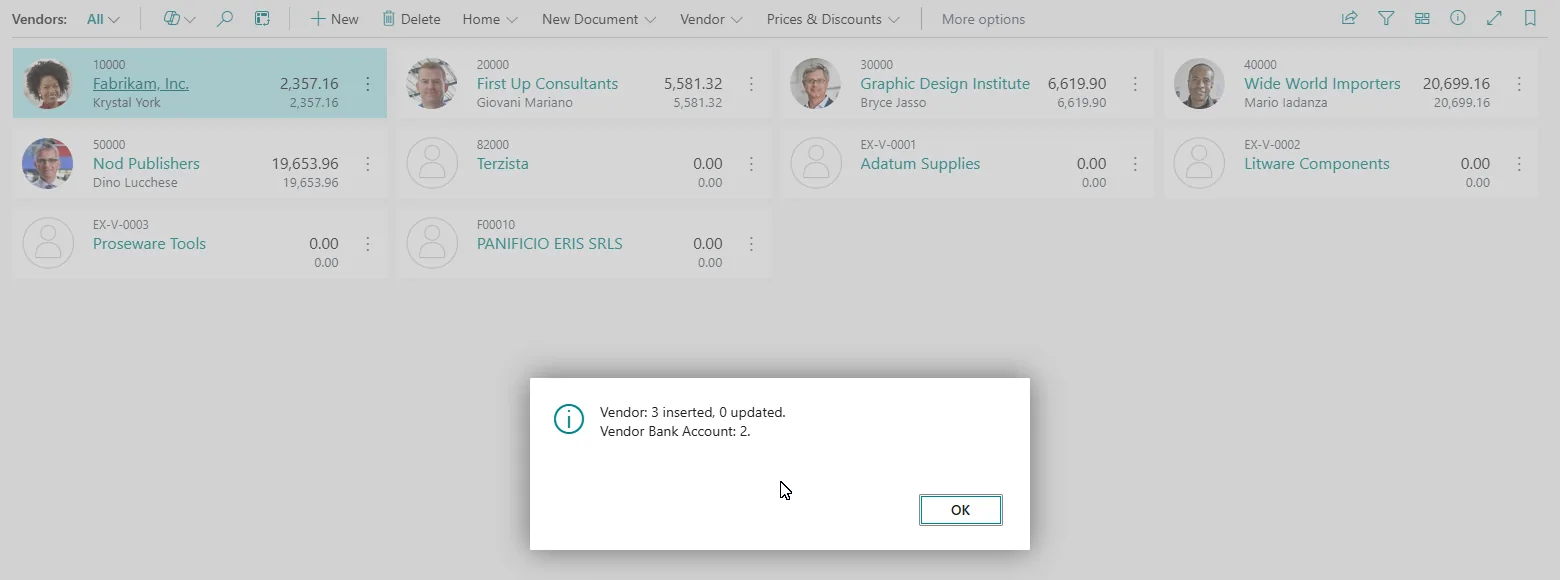
The result of the sample file: three vendors created, two of them with a bank account.
Beyond the basic file
- More related records on the same row, such as default dimensions, configured like the bank account.
- Codes that differ between the source and Business Central, such as countries, payment terms or currencies: mapping rules translate them during the import.
- Rows without a vendor number: the number series assigns the numbers.
- Customers import the same way from the Customers list, with ship-to addresses on the row; see customers.
- A supplier list that is exported on a schedule: the automatic imports pick it up from a folder without a user.
Questions
Can the same file both create and update vendors?
Yes, with write mode Insert or Update: rows are matched by the vendor number, existing vendors are updated, new ones created.
Does the import create setup data such as posting groups?
No. Posting groups, payment terms and similar setup must exist; the import assigns them to the vendor and reports the rows whose codes do not exist.
Are the bank accounts checked?
The values go through the same validation as on the bank account page, so a code or IBAN that Business Central rejects is reported with the line of the file.
Import Data Templates is available on Microsoft AppSource with a one-month free trial. Licenses are assigned per user in the Microsoft 365 admin center.