 Import Data Templates
App for Dynamics 365 Business Central
Import Excel, CSV, JSON and XML files into Business Central
Business users load documents, journals, master data and bank statements from the files they already receive. Configure a template once, or let Copilot propose it, and reuse it every time.
- One-month free trial on AppSource
- No developer required
What you can import
The import starts from the target page in Business Central: the Import Template action appears on every list that has a template.
Excel (one sheet or a whole workbook), CSV, fixed-length text, JSON and XML files, single or in a ZIP archive.
-
Documents
- Sales orders and invoices
- Purchase orders and invoices
- Transfer and assembly orders
- and more
-
Journals
- General, payment, cash receipt
- Sales and purchase
- Item, project, fixed asset
- and more
-
Master data
- Customers, vendors, items
- Bank accounts, addresses
- Item references, units
- and more
-
Price lists
- Sales price lists
- Purchase price lists
- Replace and activate
-
Inventory counts
- Physical inventory journal
- Counts into calculated lines
- Matched by item, location, bin
-
Bank statements
- Payment reconciliation journals
- Statement lines and ending balance
- Automatic matching on request
How it works
Three steps, all from the Business Central client. The example templates shipped with the app cover the common cases and can be copied as a starting point.
-
1
Create the template
Choose the target page and describe the structure of the file in the template: which column goes to which field, default values, date and number formats. Or give Copilot a sample file and it proposes the whole template, every line with its reason; nothing is saved until you keep it.
Copilot proposes the template from the sample file; every line is reviewed before it is kept. -
2
Import from the page
Open the journal, the document list or the master data list, choose Import Template, pick the template and the file, and answer the import parameters, for example the posting date or the price list. The check step validates every row and lists each problem with its line number.
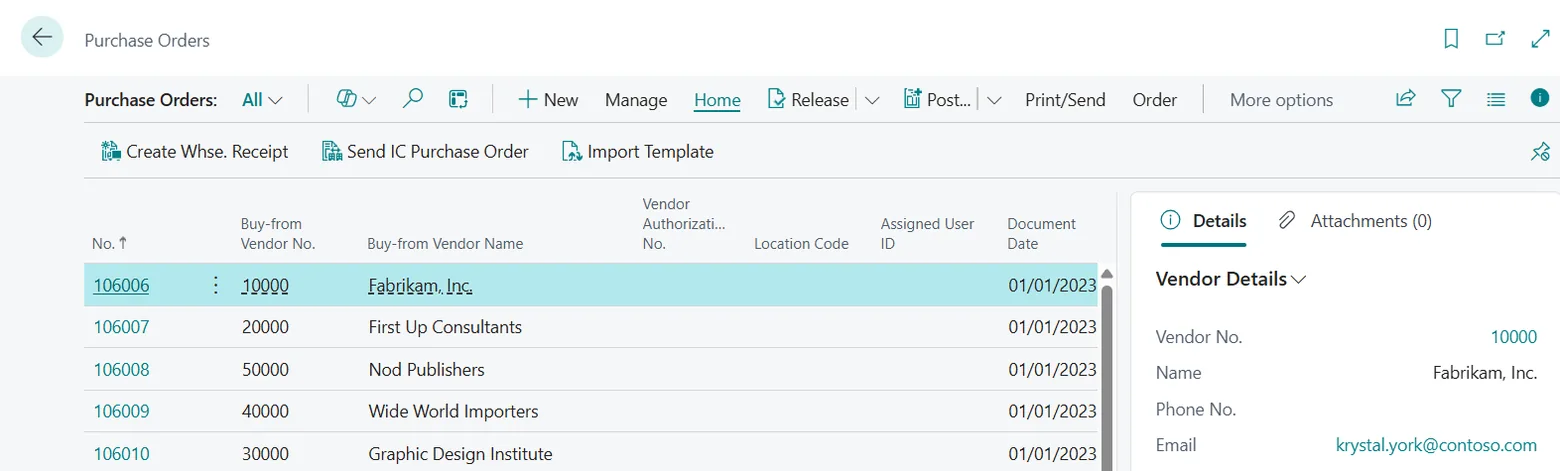
The Import Template action on the target page, here Purchase Orders. -
3
Work with the result
The documents and journal lines are in Business Central, ready to be processed as if they had been typed in. The import history records the file, the user, the date and the number of records created.
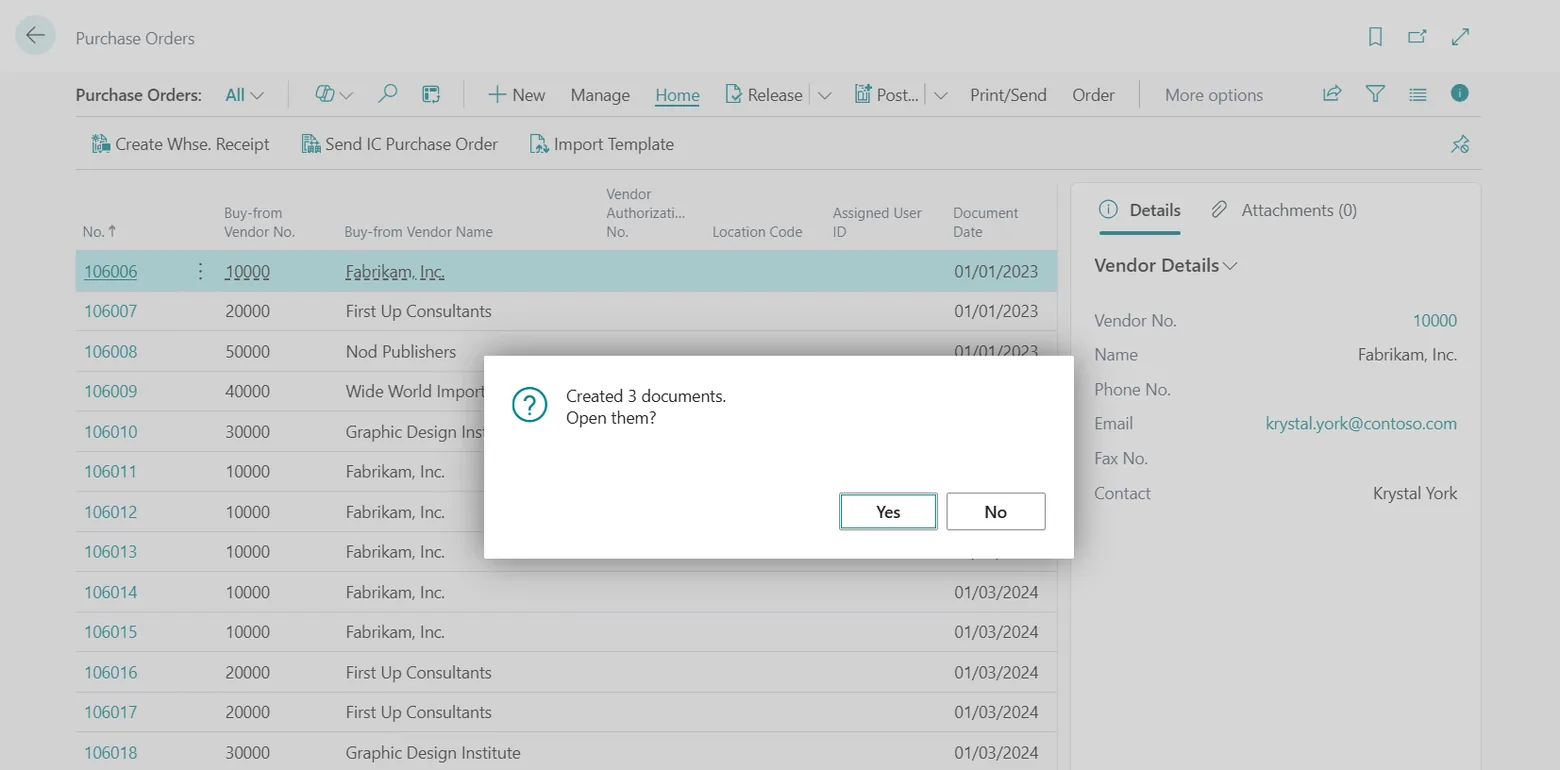
Three purchase orders created from one file.
Built for recurring imports
The features that matter when the same kind of file arrives every week from a payroll provider, a supplier, a webshop or a counting device.
- Suggest with CopilotCopilot proposes the whole template from a sample file and adapts it to what you tell it in plain words. It runs on the Business Central AI resources: nothing to install, nothing to configure.
- Automatic importsFiles dropped in a SharePoint, Azure Blob Storage or Azure File Share folder are imported by a job queue: archived when they succeed, parked with their error when they fail. How automation works.
- JSON and XML filesThe same templates read JSON and XML: point at the repeating node, map each value by its path, and everything else works as with a spreadsheet.
- Files in their original layoutHeader rows, title rows, fixed rows for header data, positional text files, one sheet or all the sheets of a workbook: the template describes the file, the file is not changed.
- File validationThe check step validates the file and reports every error with its line number in the file.
- Mapping and transformation rulesTranslate external codes into Business Central values, invert signs, multiply amounts, concatenate columns, apply date formulas, set date and decimal formats per column.
- Import parametersValues asked when the import starts: posting date, journal batch, customer, price list code. One template serves every run.
- External item numbers and barcodesMap the column to Item Reference No. and Business Central resolves the item through customer, vendor or barcode references.
- Actions after the importRelease documents, post journal lines, group rows of the same lot into one line, replace and activate prices, match bank payments.
- History and duplicate preventionKeep the list of imported files, optionally the files themselves, and block a file name from being imported twice.
- Templates you can shareCopy, export and import templates between companies and environments, restrict a template to specific users, export the empty structure for whoever produces the file.
- API and Power AutomateExternal systems and Power Automate flows run any template through the API.
Who uses it
Finance and accounting
Payroll journals from the payroll provider, allocation and accrual journals prepared in Excel, bank fees, intercompany and adjustment entries.
Treasury and credit control
Vendor payments and customer receipts applied to the invoices they settle, from a bank portal or a treasury tool.
Purchasing
Purchase orders and vendor invoices received as spreadsheets or from a supplier portal, vendor price lists and discounts, supplier catalogs.
Sales and e-commerce
Orders from webshops, marketplaces and EDI exports, customer price lists, sales invoices produced by a billing system.
Warehouse and inventory
Physical inventory counts from counting devices, adjustments, reclassifications, lot and serial numbers.
Projects and services
Project journals with hours, costs and resources from time-tracking tools, project G/L journals for external costs.
Fixed assets
Acquisition, depreciation and disposal journals from an asset register or a leasing provider.
Master data owners
New customers and vendors from a CRM with bank accounts and addresses; items with barcodes, units of measure and attributes from a PIM or a supplier catalog.
Pricing
One plan, billed through Microsoft AppSource.
Tenant licenses can also be activated by Memento without an AppSource purchase, including volume and tenant-wide licensing and 30-day trials: write to [email protected].
- All features of the app included
- Monthly or annual billing
- One-month free trial
- Licenses assigned to users in the Microsoft 365 admin center
Questions
Does it work with Business Central online?
Yes. The app is built for Business Central online and is distributed through Microsoft AppSource.
Do I need a developer?
No. Templates are configured from the Business Central pages by a key user. No code, no data exchange definitions, no XMLports.
Can I import into custom fields?
Yes. Any field of the target table can be mapped, including fields added by other extensions and additional dimensions.
What happens if the file has errors?
The check step lists every error with the line number in the file and nothing is imported. Correct the file or the template and run the import again.
Can imports run without a user?
Yes. Automatic imports watch a SharePoint, Azure Blob Storage or Azure File Share folder through a job queue, and the API serves Power Automate and external systems.
Which languages does the app support?
English, Italian, German, French, Dutch and Spanish.
Is there a trial?
Yes. Start it from AppSource, or write to [email protected] to have a 30-day trial activated on your tenant.
Install the app from AppSource, create the example templates and import the sample files on your sandbox. The first import takes less time than reading this page.