 Import Data Templates
Imports
Import physical inventory counts into Business Central
The count files from scanners, counting teams and spreadsheets, written into the physical inventory journal.
A stocktake produces files: the export of the counting devices, one spreadsheet per counting team, the list typed up in the warehouse. The physical inventory journal, meanwhile, holds the lines that Calculate Inventory created, waiting for the counted quantities to be entered against them.
With Import Data Templates, the count file is written into those lines instead of typed: the template runs in write mode Update, matches each row to the calculated line by item, variant, location and bin, and fills Qty. (Phys. Inventory) exactly as if the value had been keyed in. Rows without a calculated line, rows that match more than one, and items counted twice are reported by the check step, each with its line in the file.
What the file can look like
At its simplest, two columns: the item and the counted quantity, as in the shipped example. Map the variant, location or bin as well when the batch holds the same item in several places; map a barcode instead of the item number when the counting device speaks barcodes. An Excel workbook with one sheet per counting team imports in one run, and the sheet name can be written into the lines, as the EX-PHYS-COUNT-SHEETS example shows.
Sample file: EX-PHYS-INVENTORY.csv
- Sample file: EX-PHYS-INVENTORY.csv
How the import works
-
Load the template
Create
EX-PHYS-INVENTORYfrom the Template Examples page, or describe your count file in a template of your own; what makes it a count template is the target, the Phys. Inventory Journal, and write mode Update.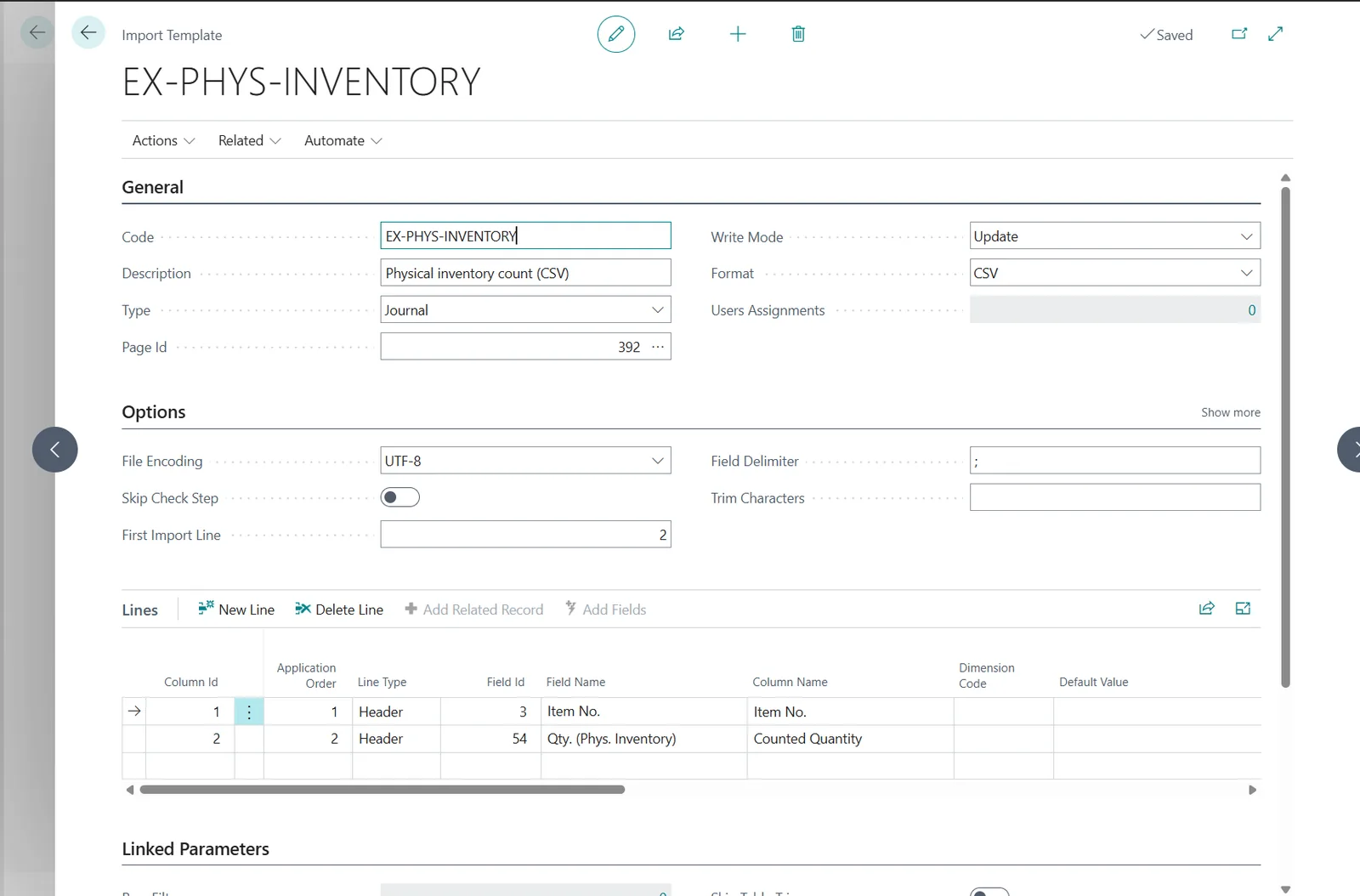
The EX-PHYS-INVENTORY template: write mode Update, the item and its counted quantity. -
Calculate, then import
Run Calculate Inventory on the batch as usual, then choose Import Template and pick the template and the count file. The check step matches every row against the calculated lines and reports what does not match, before anything is written.
The flow: Calculate Inventory creates the lines, the import writes the counted quantities into them. -
Review and post the differences
The counted quantities are in the lines, the quantities and entry types recalculated by Business Central as when they are typed. What remains is the stocktake itself: reviewing the differences and posting the journal.
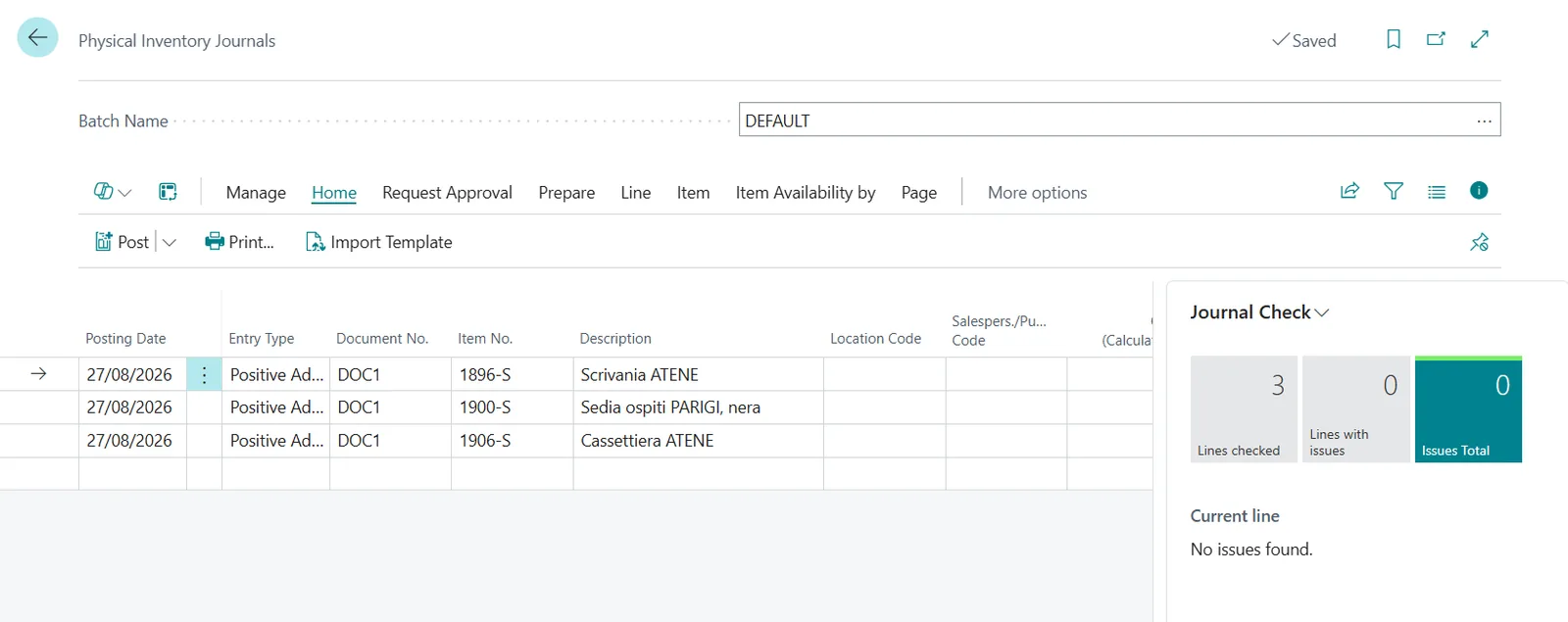
The journal after the import, checked and ready for review.
Beyond the basic file
- One workbook, one sheet per counting team: Import All Sheets reads them in one run, and Sheet Name as Value writes the team's sheet name into the lines.
- Counts by barcode: the reference resolves the item, as on documents and journals.
- Defaults that the calculated lines already carry, such as the document number, stay untouched: the template maps only what the count changes.
Questions
What happens to items in the batch that are not in the count file?
Nothing: their lines keep the calculated quantity. The import only writes the rows the file carries.
What if a row has no calculated line?
The check step reports it with the line of the file, together with rows that match more than one line and items counted twice; the import does not run until the file and the batch agree.
Can several count files be imported into the same batch?
Yes, one after the other or zipped in one run; each file updates the lines it matches.
Import Data Templates is available on Microsoft AppSource with a one-month free trial. Licenses are assigned per user in the Microsoft 365 admin center.