 Import Data Templates
Imports
Import an item journal into Business Central from Excel or CSV
Inventory adjustments from the files other systems produce, imported with their lots and serials instead of typed.
Stock movements often start outside Business Central: a production tool writes what was consumed and produced, a warehouse device exports corrections, a spreadsheet collects the adjustments of a stocktake or a quality check. Those rows become item journal lines by hand.
With Import Data Templates, the file becomes lines in the item journal batch chosen when the import starts. Serial, lot and package numbers and expiration dates are ordinary columns of the journal line, so tracked items import with their tracking, one row per lot or serial, ready to post.
What the file can look like
One row per journal line: item, quantity, location, and the tracking columns when the items carry them. What the file does not say, the template fills: the entry type, positive adjustment in the shipped example, is a default value, and the posting date can be asked when the import starts. Items can be stated by their own number or by a barcode mapped to the item reference.
The sample below is the shipped example: positive adjustments with lot numbers, from Excel.
Sample file: EX-ITEM-JOURNAL.xlsx
- Sample file: EX-ITEM-JOURNAL.xlsx
How the import works
-
Load the template
Create
EX-ITEM-JOURNALfrom the Template Examples page, or describe your file in a template of your own: fill it in from the structure of the file, use Read Structure from File, or let Copilot propose it from a sample and review it before keeping it.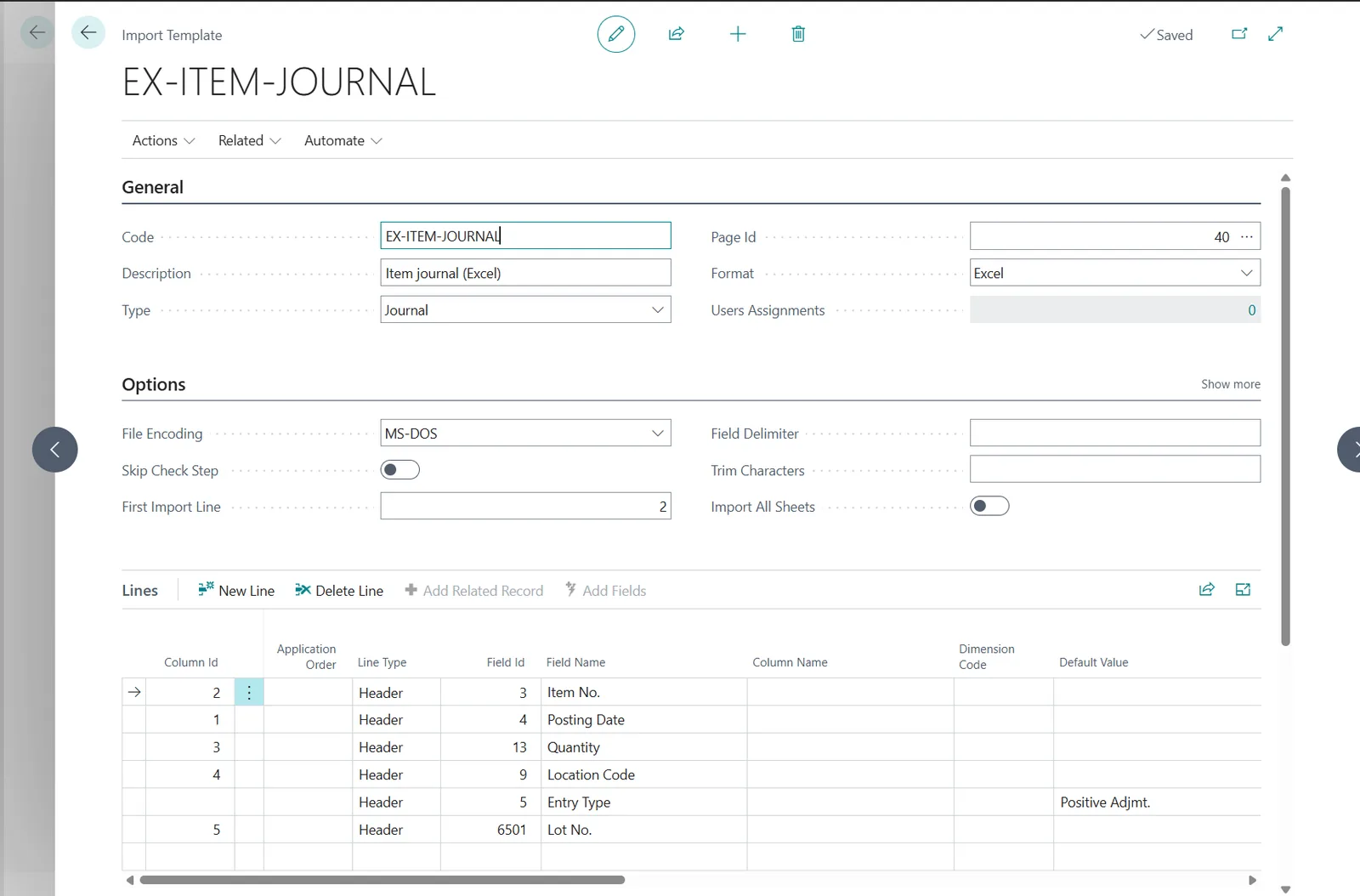
The EX-ITEM-JOURNAL template: item, date, quantity, location and lot number from the file; the entry type as a default value. -
Start the import from the journal
Open the Item Journal, pick the batch, choose Import Template, then the template and the file. The check step validates items, locations, quantities and the tracking columns, and lists every problem with the line of the file before anything is written.
The flow on the Item Journal: Import Template, the template, the file, the imported lines. -
Review and post
The lines are in the batch with their lot numbers, checked by the journal check, ready to be reviewed and posted, or posted by the template when it is configured to. The import history records the file and the result.
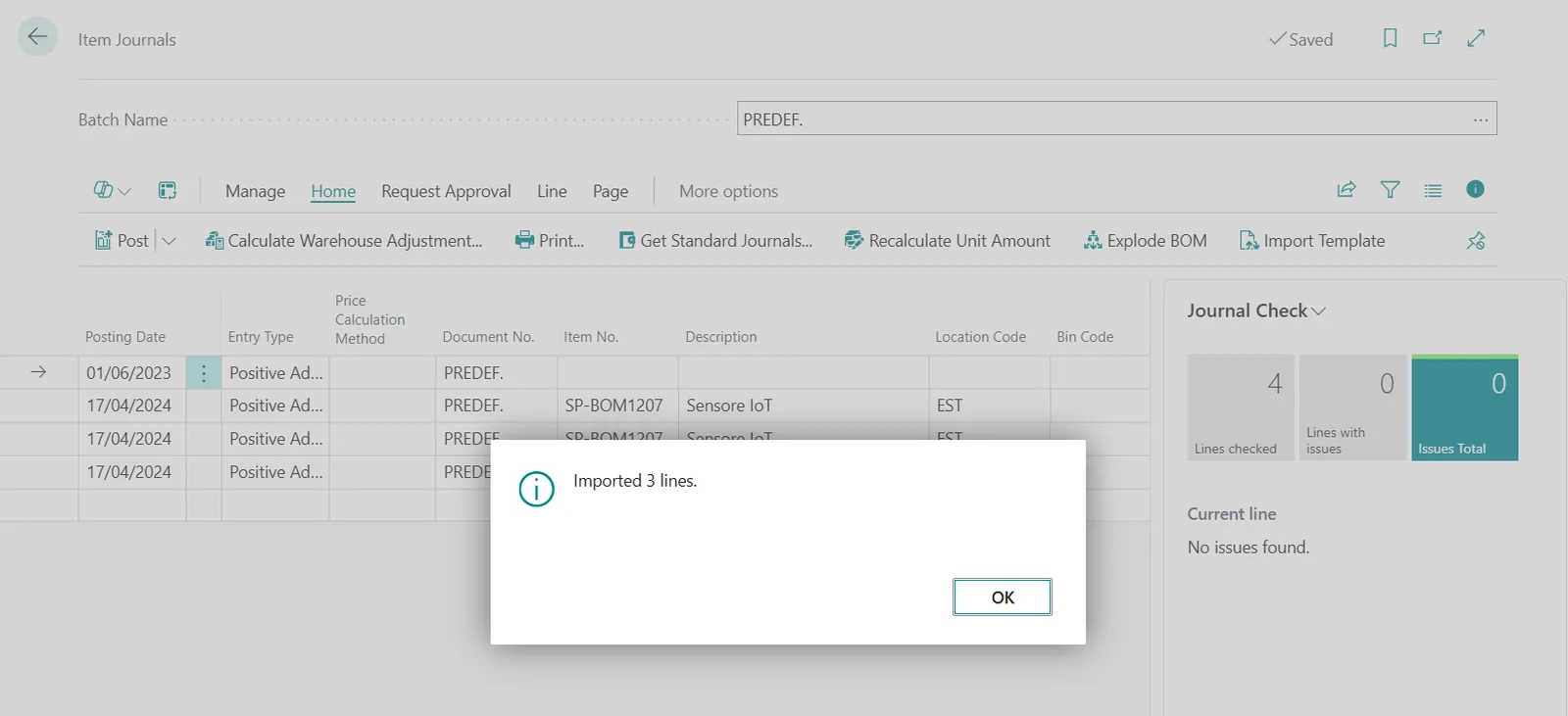
The batch after the import: three adjustment lines, no issues found.
Beyond the basic file
- Tracked items: serial, lot and package numbers and expiration dates are mapped like any other column, one row per lot or serial.
- Devices that export barcodes: map the column to the item reference and the barcode resolves the item.
- Negative adjustments, reclassifications between locations and bins: the same import on the item journal or the item reclassification journal.
- Recurring exports from a production or warehouse tool: the automatic imports watch the folder the tool writes to.
Questions
How are lot and serial numbers imported?
As columns of the journal line, one row per lot or serial number; no item tracking dialog to fill. The tracking is validated by the check step like every other value.
Can the entry type come from the file?
Yes, as a mapped column; in the shipped example it is a default value instead, so every row imports as a positive adjustment.
What about counts against calculated lines?
That is the physical inventory journal in update mode: see physical inventory counts.
Import Data Templates is available on Microsoft AppSource with a one-month free trial. Licenses are assigned per user in the Microsoft 365 admin center.