 Import Data Templates
Imports
Import sales invoices into Business Central from Excel or CSV
Invoices produced elsewhere, entered as sales invoices with their lines instead of typed.
A subscription platform bills the recurring fees, a POS or a booking system issues the receipts, a marketplace settles the month: sometimes what reaches accounting is a file of invoice lines that somebody re-enters as sales invoices, header by header, line by line.
With Import Data Templates, the file becomes sales invoices in one import from the Sales Invoices page, with their lines, the external reference kept on the document, and the whole file validated by the check step first.
What the file can look like
One row per invoice line, grouped into invoices by an invoice-number column, or, as in the shipped example, one invoice for a customer given when the import starts. Files printed from another system work as they are: title rows above the real headers are skipped by the template, and header values can sit on fixed rows. Item lines resolve by item number or by the other system's article codes through item references; service lines post to G/L accounts.
The sample below is the shipped example: an Excel print with a title row, item lines only, the customer asked as an import parameter.
Sample file: EX-SALES-INVOICE.xlsx
- Sample file: EX-SALES-INVOICE.xlsx
How the import works
-
Load the template
Create
EX-SALES-INVOICEfrom the Template Examples page, or describe your system's file in a template of your own: fill it in from the structure of the file, use Read Structure from File, or let Copilot propose it from a sample and review it before keeping it.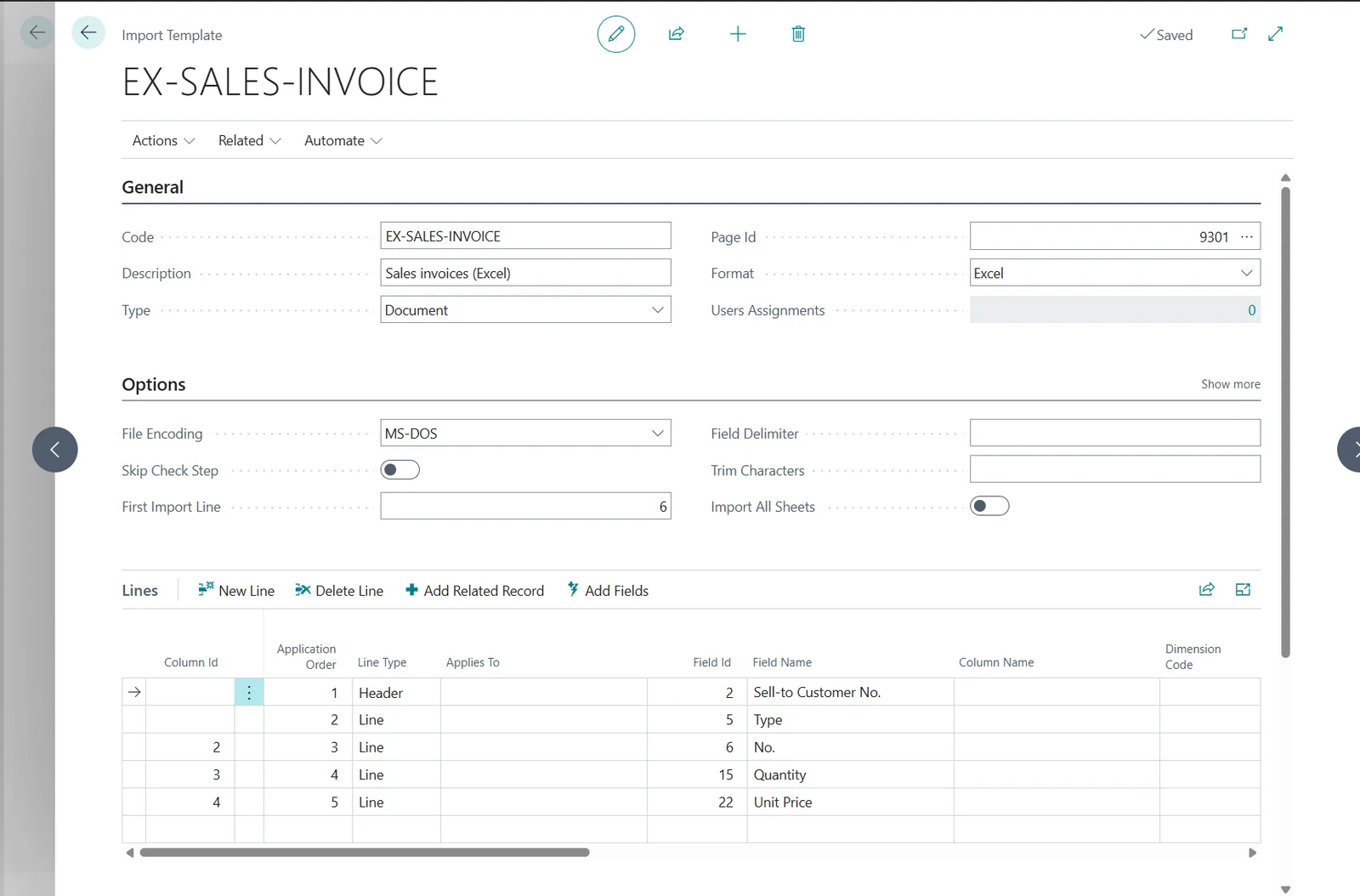
The EX-SALES-INVOICE template: an Excel print read from row 6, the customer as a header parameter, item lines with quantity and price. -
Start the import from Sales Invoices
Choose Import Template on the Sales Invoices list, pick the template and the file, and answer the import parameters, the customer in the example. The check step validates customers, items, quantities and prices, and lists every problem with the line of the file before any invoice is created.
The flow: Import Template on the Sales Invoices list, the template and the file, the customer asked as a parameter. -
Review and post
The invoices are in the list with their lines, ready to be reviewed, released and posted like any invoice entered by hand, or released by the template when it is configured to. The import history records the file, the user and the number of documents created.
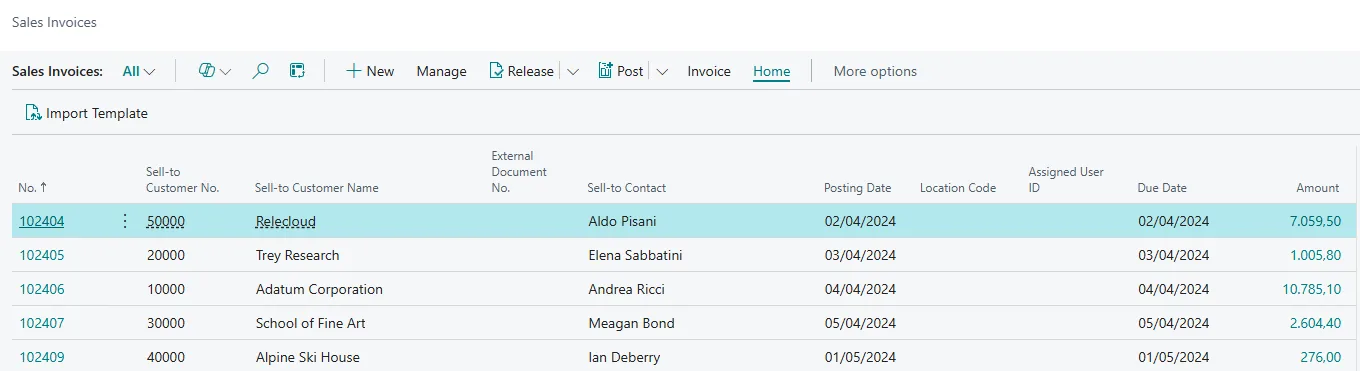
The Sales Invoices list after the import, with Import Template in the action bar.
Beyond the basic file
- Several invoices in one file: an invoice-number column marked as the document separator starts a new invoice whenever its value changes.
- The other system's article codes: map the column to Item Reference No. and the item references resolve the item.
- Service fees without items: G/L account lines, with the account as a default value or as a mapped column.
- The external invoice number kept for reconciliation: map it to External Document No. on the header.
- A daily export from the billing system: a ZIP imports several files in one run, and the automatic imports watch the folder it is written to.
Questions
Can one file hold invoices for several customers?
Yes, with a customer column on the rows and an invoice-number column as document separator; the shipped example uses a single customer asked as a parameter instead.
Are prices taken from the file or from Business Central?
Either: map the price column to use the file's prices, or leave it unmapped and the price lists price the lines as they would for a typed invoice.
Can the invoices be posted automatically?
The template can release them at the end of the import; posting stays a deliberate step in the list, as for any sales invoice.
Import Data Templates is available on Microsoft AppSource with a one-month free trial. Licenses are assigned per user in the Microsoft 365 admin center.