 Import Data Templates
Imports
Import sales orders into Business Central from CSV, Excel, JSON or XML
Orders exported by a webshop, a marketplace or an EDI partner, turned into sales orders with their lines.
Orders arrive as exports: the CSV a webshop produces, the JSON or XML an e-commerce platform or an API returns, the files an EDI partner delivers. Between the export and Business Central someone re-keys them, or a developer builds and maintains an integration for each source.
With Import Data Templates, each source becomes a template. The order number of the shop separates the orders, so one file creates many orders in one run; the shop's own reference stays on the order as the external document number, and the shop's article codes resolve to items through item references. The same template works day after day, file after file.
What the file can look like
One row per order line with the order data repeated, the usual shape of shop exports. The same orders can also arrive as JSON or XML: the template then points at the repeating node (the order, the line) and maps each value by its path instead of a column number; everything else, separators, formats, references, works the same. The three shipped examples, EX-SO-WEBSHOP, EX-SO-JSON and EX-SO-XML, are the same orders in the three formats.
Sample file: EX-SO-WEBSHOP.csv
- Sample file: EX-SO-WEBSHOP.csv
How the import works
-
Load the template
Create
EX-SO-WEBSHOPfrom the Template Examples page, or describe your shop's export in a template of your own: fill it in from the structure of the file, use Read Structure from File, or let Copilot propose it from an export and review it before keeping it.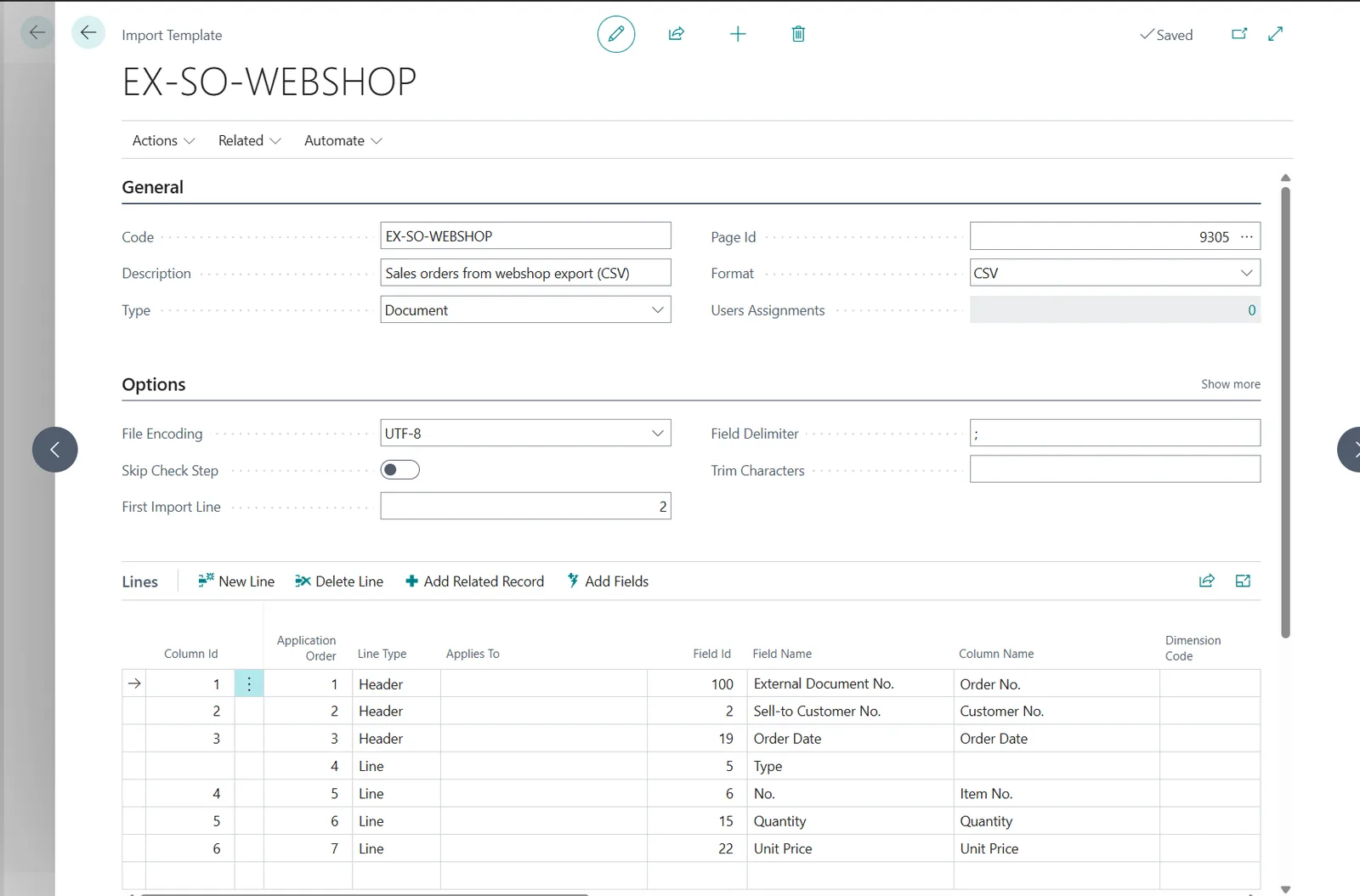
The EX-SO-WEBSHOP template: the shop's order number as External Document No. separates the orders; customer, date and item lines follow. -
Start the import from Sales Orders
Choose Import Template on the Sales Orders list, pick the template and the export file. The check step validates customers, items, quantities and dates, and reports every problem with the line of the file before any order is created.
The flow on Sales Orders: Import Template, the template, the export file, the created orders. -
Work with the orders
The orders are created with their lines, numbered by the number series, the shop's reference in External Document No., ready for the usual flow: reserve, ship, invoice. The import history keeps each file and its result, and blocks a file from being imported twice.
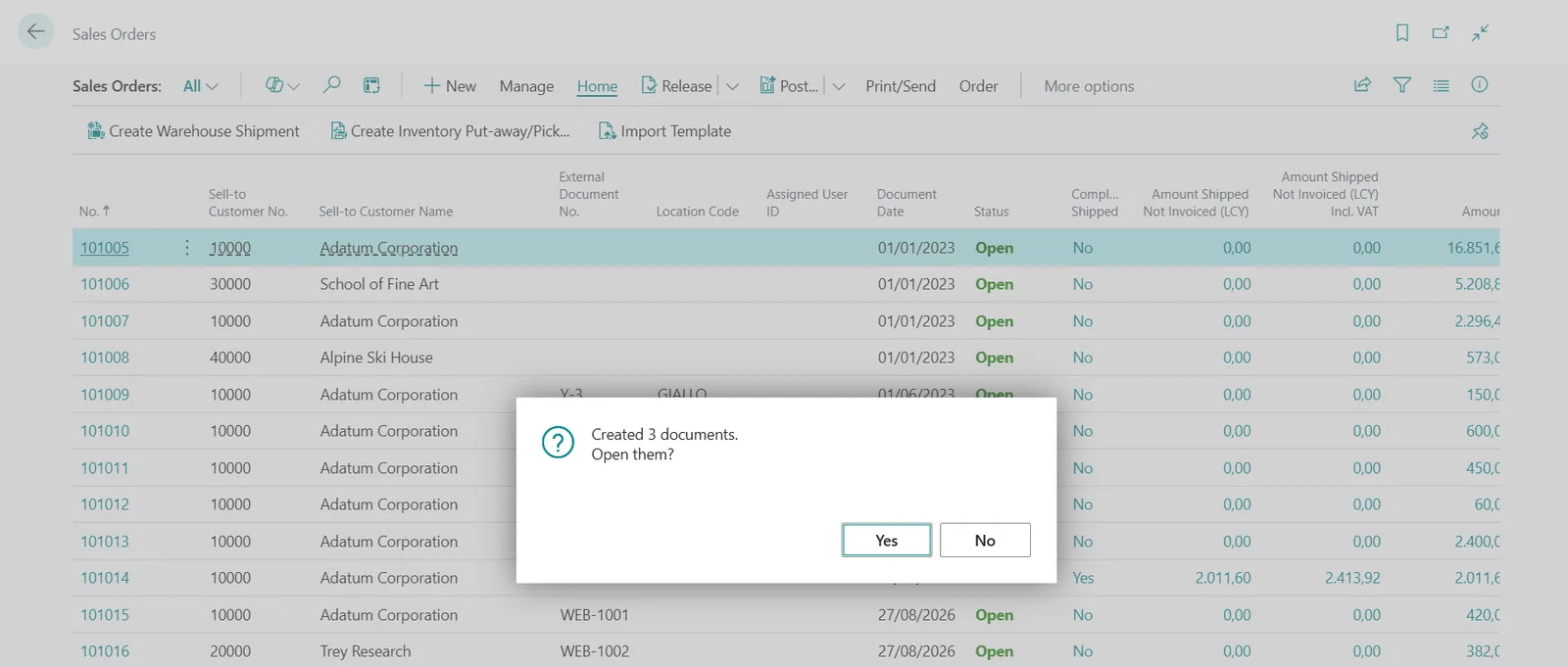
Three orders from one export, the webshop references WEB-1001 and WEB-1002 on the orders.
Beyond the basic file
- The shop sells by its own SKUs or barcodes: map that column to Item Reference No. and Business Central resolves the item through the item references.
- The export carries rows that are not order lines, such as shipping or fee rows to treat differently, or cancelled positions: row filters and mapping rules deal with them in the template.
- Prices from the shop or prices from Business Central: map the price column, or leave it out and let the price lists price the lines.
- Several exports a day: a ZIP imports them in one run, and with the automatic imports a job queue picks up each file the shop drops in a SharePoint, Azure Blob Storage or Azure File Share folder, no user involved.
- The orders should leave the list released: a template action releases them at the end of the import.
Questions
Does one file create several orders?
Yes. A new order starts whenever the order-number column changes, so a day's export becomes the day's orders in one import.
What about JSON or XML exports?
Supported like the spreadsheet formats: the template names the repeating node and maps the values by their path, as in the EX-SO-JSON and EX-SO-XML examples.
Can the shop's customer codes differ from Business Central?
Yes. A mapping rule translates the shop's codes into customer numbers during the import, and a default value covers shops that always sell to the same customer.
Import Data Templates is available on Microsoft AppSource with a one-month free trial. Licenses are assigned per user in the Microsoft 365 admin center.