 Import Data Templates
Imports
Import sales price lists into Business Central from Excel or CSV
A price update prepared in a spreadsheet, applied to a Business Central sales price list in one import.
Sales prices change in files before they change in the ERP: the yearly price increase worked out in Excel, a new list for a customer group, prices maintained in a product information or e-commerce system, a manufacturer's recommended prices, and more. Entering them means opening the price list, finding each product, ending the old price and adding the new one.
With Import Data Templates, the file fills the lines of the sales price list chosen when the import starts. Lines are matched on their content, product, unit of measure, minimum quantity and starting date, so the same import adds new prices and updates existing ones, and a template action ends the prices the file replaces.
What the file can look like
One row per price: the item, the starting date and the unit price, with the unit of measure and the minimum quantity when the price depends on them. Values the file does not carry, such as the product type, are set by the template; the price list is asked when the import starts, so one template serves every list with that layout.
The sample below is the shipped example: four item prices starting on the first of January, one of them from a minimum quantity of ten.
Sample file: EX-SALES-PRICES.xlsx
- Sample file: EX-SALES-PRICES.xlsx
How the import works
-
Load the template
Create
EX-SALES-PRICESfrom the Template Examples page, or describe your own file in a template: fill it in from the structure of the file, use Read Structure from File to build it from the column headers, or let Copilot propose it from a sample file and review it before keeping it.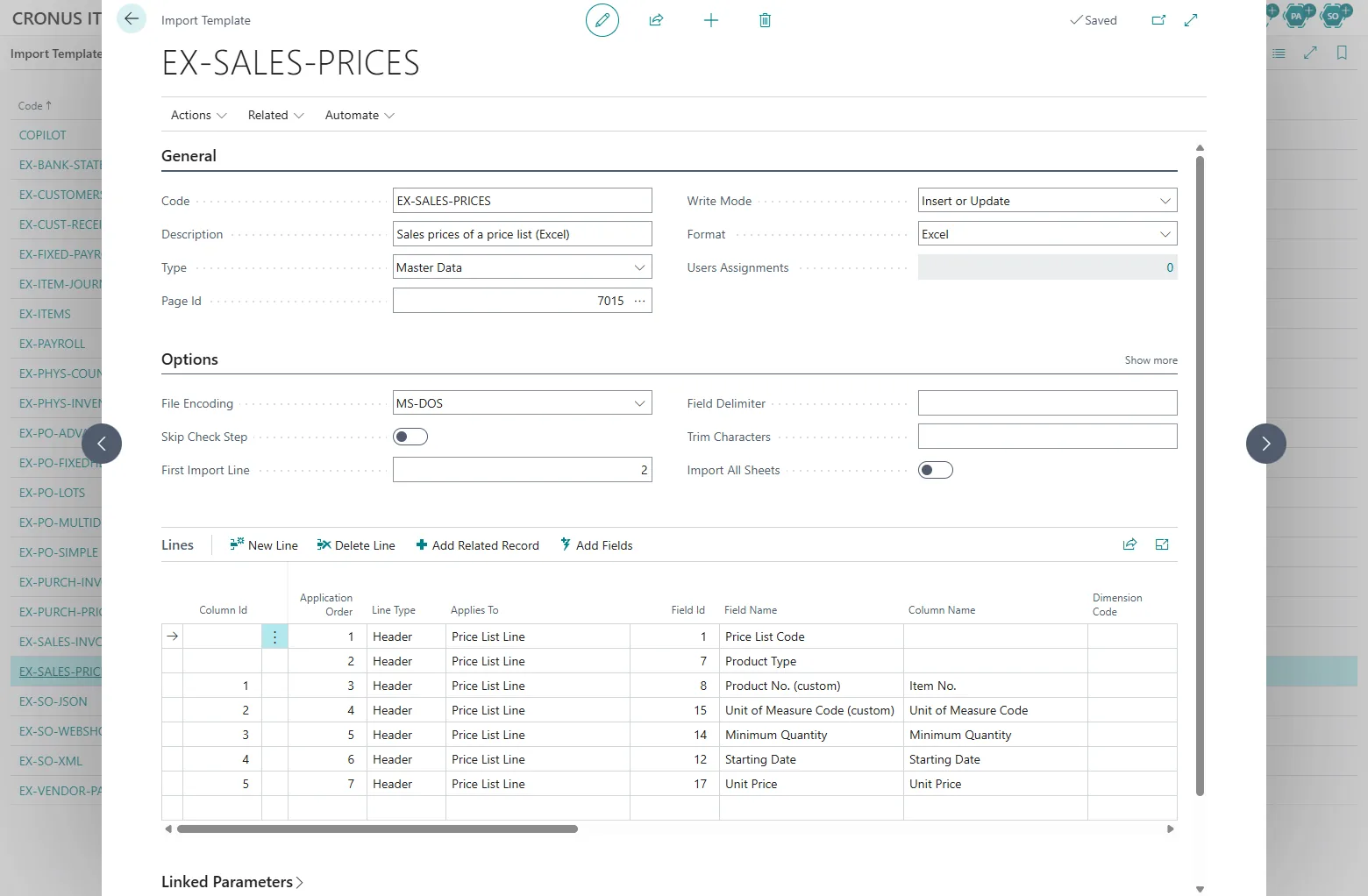
The EX-SALES-PRICES template: the price list code first, then the columns of the file. -
Start the import from the Sales Price Lists page
Choose Import Template on the Sales Price Lists page, pick the template and the file, and enter the price list when asked. The list must accept new lines: in draft, or active with editing of active prices allowed; a list that does not allow updating defaults keeps one starting date for all its lines, so the dates in the file must match it. The check step validates items, units, dates and prices, and lists every problem with the line of the file before anything is written.
The flow: Import Template, the template, the file, the price list, four prices inserted. -
The list is up to date
The imported prices are in the price list, inserted or updated depending on what the file carried. With the Replace Prices action, the price each line replaces is ended the day before the new starting date, never deleted, so the price history stays intact. Business Central asks whether to activate a list that is still in draft. The import history records the file, the user and the number of lines.
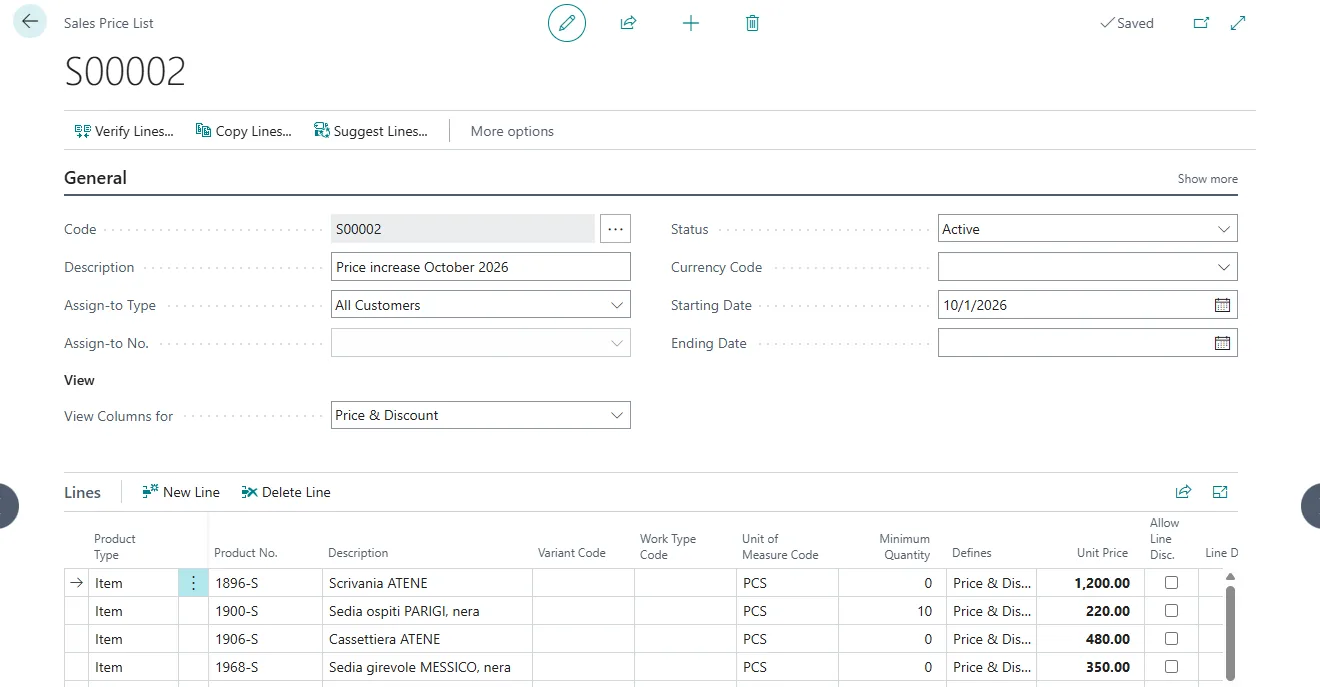
The list after the import: four item prices from 1 October, one of them from ten pieces.
Beyond the basic file
- A price per unit of measure: fill in the unit of measure column and the price applies to that unit only.
- Quantity breaks: several rows for the same item with different minimum quantities.
- Product codes from another system: a mapping rule translates them to Business Central item numbers.
- Purchase prices import the same way into purchase price lists; see supplier price lists.
- A price file published on a schedule: the automatic imports pick it up from a SharePoint or Azure folder without a user.
Questions
Are old prices deleted?
No. Replaced prices are ended with an ending date, so the history of every price stays in the list.
Does the import create the price list?
No. It fills the lines of an existing list, chosen as an import parameter in the shipped example.
What if the file carries a price that already exists?
Lines are matched on their content: the same product, unit, quantity and starting date updates the existing line; a different starting date is a new price.
Import Data Templates is available on Microsoft AppSource with a one-month free trial. Licenses are assigned per user in the Microsoft 365 admin center.